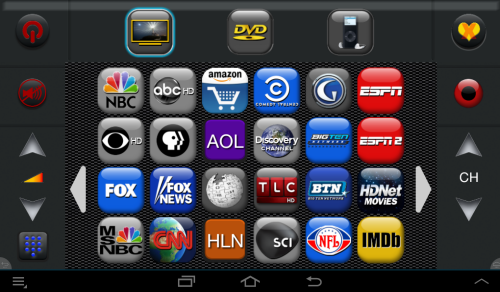
The Favorites screen is part of Watch TV mode. You can set up to 40 screens of favorite channels and access them with a single touch. This works on both TV or Cable/Sat boxes. In favorites mode, the slim arrows to right and left change favorites screens. The volume and channel buttons retain their regular functions.
Favorites can be Channels, Websites, or command buttons. The IMDB and Amazon icons above are web sites. When you select one of them, it will open in the built in web browser.
Touch the Android Menu button (in the screen above it is in the lower left but it veries with the device). Check or Uncheck the Lock Favorites option.
To add a new favorite, or edit an existing favorite, touch and hold the favorite button you want to change until this screen appears. If there are no buttons, touch and hold a blank spot on the screen where you would like a button.
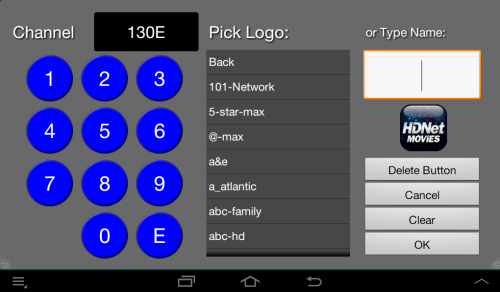
Set the channel number by using the numeric key pad. The E key is the ENTER command. On some cable boxes it speeds operation if the digits are followed by the Enter command, but use of this is optional.
Pick a logo by touching the name. The logo will appear in the button at right. There is a long list of logos available, you can scroll the list with a swipe of your finger. There are several folders with logos. You can add your own in the USER folder. Touch Back to se a list of folders.
If you cannot find a suitable logo, or prefer a simple text label then touch the text box in the upper right. The virtual keyboard will appear and you can type the name. A length of 3 to 4 letters is appropriate. There are plain colored buttons in the ColorButs folder if you want a background button.
If you make a mistake, touch the Clear button and start over.
Touch OK when you are ready.