
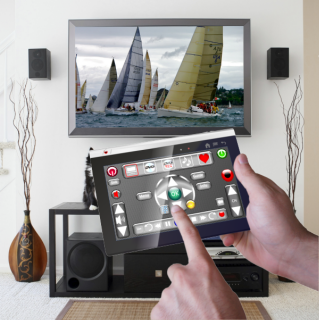
The TouchSquid App, running on a Touchsquid tablet or another supported device provides a convenient replacement for up to 15 remotes in a single room (4 for the less expensive Home versions).
The TouchSquid can turn all your Home Theater devices On or Off with a single touch. It shows only those buttons relevant to the activity in progress, which allows buttons to be large and easy to read.
To begin, touch the
 icon which will
start the app. You will see this screen:
icon which will
start the app. You will see this screen:

The first time you run the app you should select Settings (the gears icon).
Touch to enter the set up screens. Here you will select which devices you wish to control, and what activities you will be using them for. You need to set up at least one profile with at least one device before you can use the TouchSquid as a remote.
A profile is a recorded setting for a particular room or combination of devices. You can save an unlimited number of profiles to allow you to use your TouchSquid in different rooms or even different houses. Touch to retrieve a previously created profile.
Touch to enter the remote control screens and begin controlling your devices.
Touch to exit the application. You can also exit by hitting the Home button. If you exit from a remote screen with the home button, the app will not switch off any of your entertainment devices, but will save the state of the remote and then when you re-enter the app it will return to the same state.