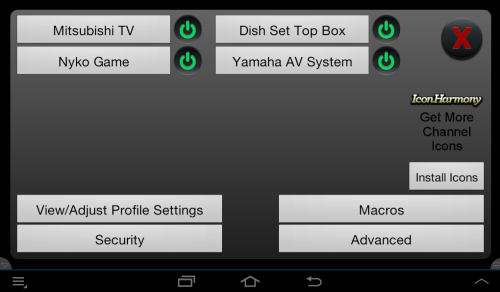
A macro is a sequence of commands that are executed with a single button push. They are created and edited by pressing the "Squid Eye" when in an activity.
To access Macro settings touch the Squid Eye, then the MACROS button.
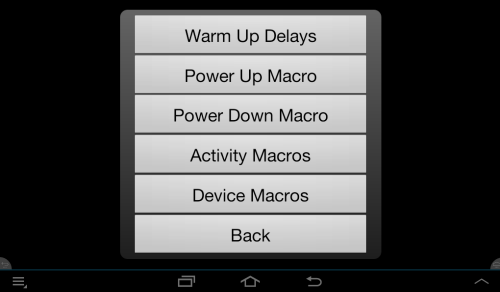
Strictly speaking these are not macros. Most devices have a warm up period before they can accept input commands. TVs an projectors may need up to 10 or 11 seconds before they can accept input commands.
You can accept the default delays if everything is functioning OK, or try shorter delays to speed things up. Each device in your device list has its own delay.
This is a Macro which is executed before all your devices start up for the first time. Typically it might be used to dim lights close curtains, or lower a projector screen.
This macro is executed when you touch the Power Off button. Typically it might raise the house lights and roll up the projector screen.
These are executed at the start of finish of an activity. Each activity can have its own start and finish macro.
These may be assigned to any command buttons. Some devices may lack a discreet input code for example, but can be put in TV mode by sending channel up, then a series of input scroll commands to get to the correct input, then an exit code to close the input menu.
Touch Squid Eye/Advanced/Customize Buttons/Long Press on button to edit/Select Device/Create Macro/add function. Repeat until you have entered all the commands in the macro.
Touch Favorites (heart icon) / Long Press on blank area/Long press on a blank button/Button/Select Device/Create Macro/add function. Repeat until you have entered all the commands in the macro.
A macro is just a sequence of commands. To define a macro, select the device to control, and then the command to execute. You can enter up to 10 commands in a macro. The delay after each command defaults to 0.1 seconds but you can adjust it with a long touch on the Macro item. Click OK when done.