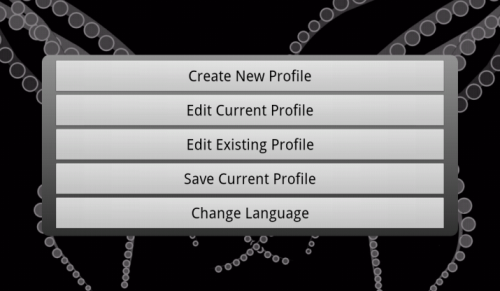
Before you can control a group of devices in a room, you must create a room profile.
You can create as many profiles as you wish, and give them meaningful names such as "Living Room" or "Tinas TV".
The last profile used becomes the "Default Profile" and will be used each time you start the TouchSquid app, until you select a different one.
To create your first profile touch the Settings button on the startup screen:
This is the screen with no devices yet defined. Touch "Add Device" to add you first device, usually the TV, Monitor or Projector which displays your video signals.

Delete a device already defined. Do this if you make a mistake or you are replacing a device with a different one.
Touch when you have completed your device list. This will take you to the main configuration screen.

From were you add and edit activities. While activities (as of version 4.26) are not required, they are an important feature of the app and you will not be getting the most out of it without them.